File
Integrations
File
Integrations
The free & open-source user story mapping tool.
No sign-up needed. Start mapping now.
or import the story map hidden inside your existing backlog:
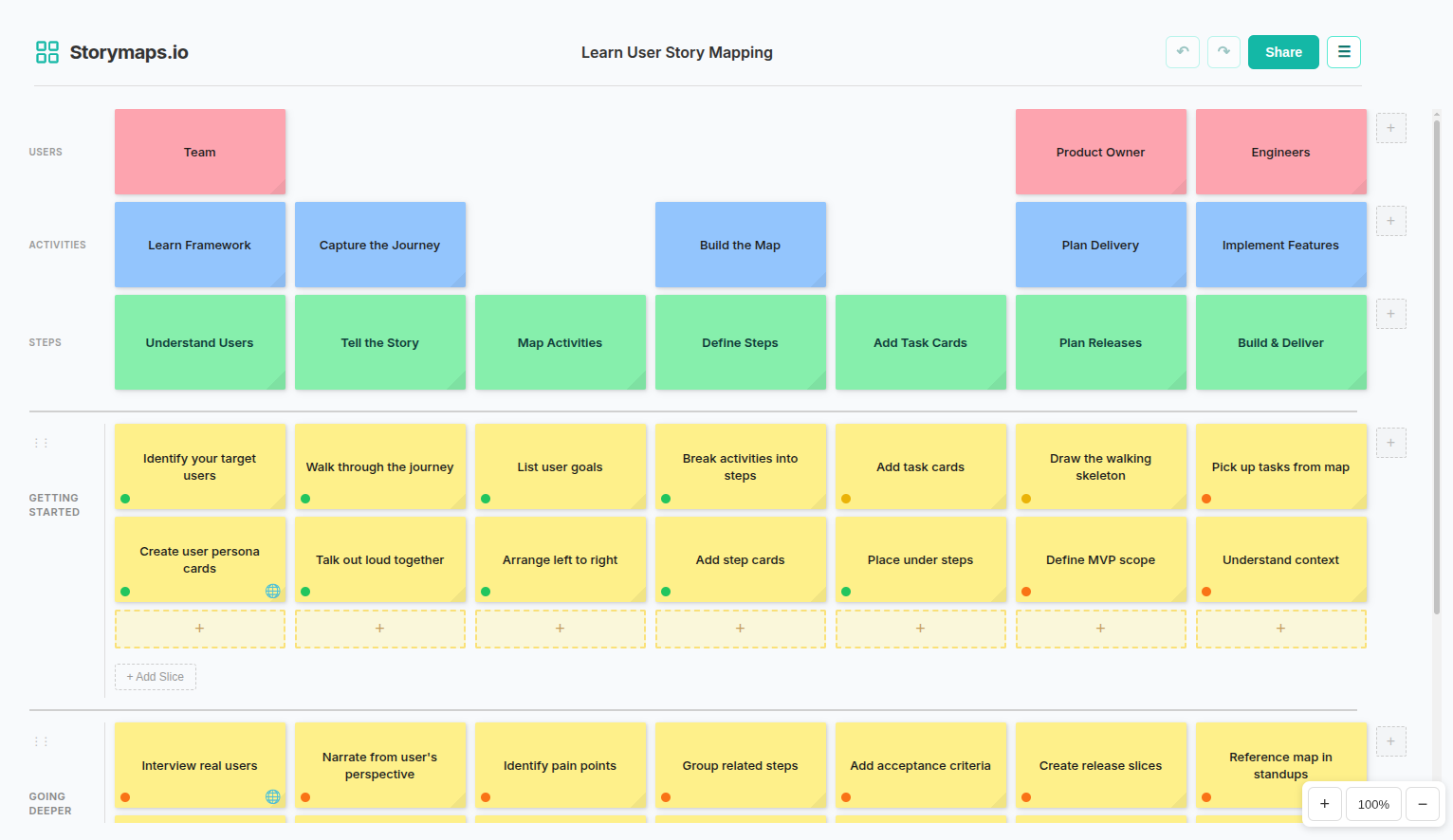
Try a sample story map
Learn more about user story mapping:
Paste your story map JSON data below
Select a .json file from your computer
Paste your story map YAML data below
Select a .yaml file from your computer
Paste your story map CSV data below
Select a .csv file from your computer
Copy the JSON data below or download as a file
Save as a .json file to your computer
Copy the YAML data below or download as a file
Save as a .yaml file to your computer
Copy the CSV data below or download as a file
Save as a .csv file to your computer
Required to import into an existing Jira project. Leave blank to choose during import.
Open your Phabricator site, open DevTools (), go to Console, paste this code and press Enter:
Still in the console, paste this code and press Enter:
Open your Jira project, open DevTools (), go to Console, paste this code and press Enter:
Still in the console, paste this code and press Enter:
Open app.asana.com, open DevTools (), go to Console, paste this code and press Enter:
Still in the console, paste this code and press Enter:
Export from Jira: Issues > ... > Export > CSV (all fields)
Provide your Jira URL to link imported cards back to their issues
Export from Asana: Project > ... > Export/Print > CSV
Export from Phabricator: Maniphest > select tasks > Export as CSV
Export from Linear: Settings > Export > Export CSV
Snapshots of your map. Up to 5 kept.
Create a password to lock this map. Anyone with the password can unlock it to edit.
Keep your password safe — there's no recovery option. If you lose it, you can still use Menu → Copy this map to create a new editable copy.